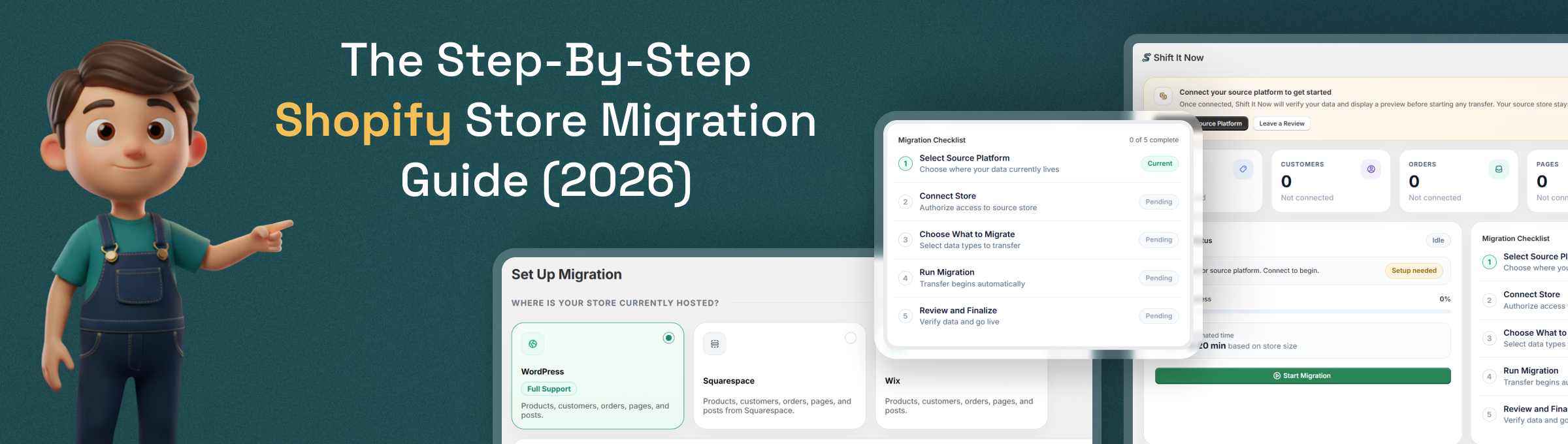
The Step-by-Step Shopify Store Migration Guide (2026)
Thinking about moving your store to Shopify? Good instinct. But the process feels overwhelming, right?
You're worried about:
- ❌ Losing all your product data
- ❌ Customers unable to see their order history
- ❌ Hours of downtime (lost sales!)
- ❌ Your SEO rankings disappearing
- ❌ Having to manually recreate everything
Here's the good news: With the right approach, you can migrate in just 2-5 days and avoid all of these problems.
This guide walks you through it step-by-step. No fluff, no jargon. Just actionable steps you can take today.
1: Should You Migrate to Shopify?
Do You Actually Need to Migrate to Shopify?
Before you start, let's confirm Shopify is right for you.
You should migrate if you're currently on:- WooCommerce (requires constant maintenance)
- BigCommerce (too expensive)
- Magento (too complex)
- Squarespace, OpenCart, Etsy, 3dcart, PrestaShop
- An aging custom-built platform
- Any platform that's holding you back
- You're already on Shopify or Shopify Plus ✅
- Your business is very small (<10 products, <$1k/month revenue)
- You're happy with your current platform and it's growing
Still not sure? Read our comparison: WooCommerce vs Shopify | BigCommerce vs Shopify
2: What You Need to Know (Before You Start)
5 Things Every Merchant Should Know About Shopify Migration
1. How Long Does It Really Take?
Short answer: 2-7 days with the right tools. Here's the breakdown:
| Store Size | With Tool | Without Tool |
|---|---|---|
| Small (<500 products) | 2-3 days | 1-2 weeks |
| Medium (500-5k products) | 3-5 days | 2-4 weeks |
| Large (5k-50k products) | 5-7 days | 4-8 weeks |
The difference? Using a migration tool like Shift It Now automates 90% of the work. Without it, you're manually transferring data (which takes forever).
💡 Pro Tip: Most merchants who do it manually end up taking 2-3 months because they get stuck on details.
2. How Much Will It Cost?
Let's be real about the cost:
-
Option A: DIY with a Tool
- Shift It Now: Free, $49, or $99 depending on plan limits (paid plans are one-time charges)
- Your time: 10-20 hours
- Total: $200-500 + your labor
-
Option B: DIY + Some Professional Help
- Migration tool: $200-500
- Professional guidance (10-20 hours): $1,500-$3,000
- Total: $1,700-$3,500 (Recommended)
-
Option C: Full Professional Migration
- Agency handles everything
- Total: $3,000-$15,000+
What we recommend: Use a tool + get 10-20 hours of professional support. You get most of the benefits at 30% of the cost.
Compare Migration Options →
3. Will You Lose SEO Rankings?
Short answer: No, if you do it right. Here's what you need to do:
- ✅ Set up 301 redirects (old URL → new URL)
- ✅ Update your sitemap
- ✅ Notify Google Search Console
- ✅ Update internal links
With these steps, you preserve 90-95% of your rankings. Rankings may dip for 2-4 weeks, then recover.
Without these steps? Yes, you'll lose rankings. Don't do that.
4. Will Your Customers Lose Access to Their Accounts?
Shopify doesn't import passwords (for security). So yes, customers need to reset their passwords.
How to handle it:- Send an email: "Reset your password here: [link]"
- Make it easy (one-click reset)
- Some customers will ignore it (that's normal)
For security-conscious merchants: This is actually a feature, not a bug. Password reset ensures old passwords aren't exposed.
5. What If Something Goes Wrong?
Good news: You've backed up your original data, right?
Always follow this rule: Never delete your old store until 30 days after going live.
If something breaks:
- You can go back to your old store (have a backup)
- Rerun the migration to fix issues
- Customers can still access their old accounts
This is why automation tools are worth it—they can re-run the migration without losing data.
3: Plan Your Migration (Quick Checklist)
Pre-Migration Checklist (Do This Before You Start)
Step 1: Audit What You Have
Grab a piece of paper (or spreadsheet) and answer these:
Products:
- How many products? ___
- Do you have variants? (Yes/No)
- How many images per product? ___
- Any custom product fields? ___
Customers:
- How many customer accounts? ___
- Need to preserve order history? (Yes/No)
Custom Features:
- Do you have any custom code? (Yes/No)
- Any special integrations? ___
Pro tip: If you have 500+ products or custom integrations, hire professional help. DIY gets complicated.
Step 2: Choose Your Migration Method
You have 3 options:
-
A) Automated Tool (Recommended)
⭐⭐⭐⭐⭐
- Best for: Most merchants
- Time: 2-7 days
- Cost: $200-500
- Effort: Low
- Popular tools: Shift It Now, LitExtension, Cart2Cart
-
B) Hybrid (Tool + Professional Support)
- Best for: Medium-sized stores who want peace of mind
- Time: 3-5 days
- Cost: $1,700-$3,500
- Effort: Very low
- What you get: Tool + expert guidance
-
C) Manual (DIY)
- Best for: Stores <200 products, patient merchants
- Time: 2-4 weeks
- Cost: Your time only
- Effort: High
- Risk: Higher chance of errors
Our honest recommendation? Go with Option B. You get the speed of a tool + the peace of mind of professional support.
Get a Free Migration Assessment →Step 3: Set a Go-Live Date
Pick a date 2-4 weeks from now. Why?
- Gives you time to prepare without rushing
- Avoids busy sales periods (don't migrate during Black Friday!)
- Allows testing before launch
- Lets customers adjust to the new store
Best day to launch? Tuesday-Thursday. Avoid Fridays (if something breaks, no support). Avoid Mondays (people are busy).
4: The Actual Migration Process
How to Migrate to Shopify (The Simple Version)
Okay, here's where it gets real. The actual migration happens in 7 steps.
Step 1: Set Up Your Shopify Store
- Go to Shopify.com and click "Start free trial"
- Enter your email and create a password
- Follow the setup wizard (takes 10 minutes)
- You now have an empty Shopify store ✅
Cost: Free for 3 months (then $39-99/month)
Time needed: 15 minutes
Don't worry about: Customization, branding, or settings yet. We're moving fast.
Step 2: Move Your Products
This is the biggest step. Here's how it works:
If using a migration tool (recommended):
- Install Shift It Now (or your tool of choice)
- Connect your old store (give it access to your product data)
- Choose what to import (products, images, descriptions, pricing)
- Click "Start migration"
- Wait 1-4 hours (depending on product count)
- Review the imported products (takes 30 minutes)
- Fix any issues (usually minor)
If doing it manually:
- Export products from old store as CSV
- Reformat the CSV to match Shopify's template
- Upload to Shopify admin > Products > Import
- Manually verify each product (time-consuming)
Time needed: 2-4 hours with tool | 40-80+ hours manually
Pro tip: Always test with 10 products first. Don't import everything at once.
Start Free Product Migration →
Step 3: Migrate Your Customers & Orders
If you want customers to see their past orders and account history:
- Export customers from old store (email, name, address)
- Use a migration tool OR
- Import via CSV to Shopify admin > Customers > Import
- Send customers an email: "Reset your password here"
Important: Passwords don't transfer. Customers must reset them.
Time needed: 1-2 hours
Backlink opportunity: Write a blog post titled "How to Preserve Customer Data During Ecommerce Migration" — agencies and forums will link to this.
Step 4: Set Up Your Domain
This is critical. Your domain is your brand. Do it right.
Option A: Point Domain to Shopify (Easiest)
- Go to your domain registrar (GoDaddy, Namecheap, etc.)
- Update DNS settings to point to Shopify
- In Shopify admin > Settings > Domains > Add existing domain
- Follow the instructions
- Done (takes 24-48 hours to propagate)
Option B: Transfer Domain to Shopify (Less common)
- Shopify can handle your domain directly
- Takes 5-7 days to transfer
- Less recommended during migration (adds complexity)
Time needed: 15 minutes
Pro tip: Do this step last (right before launch). Once you point your domain, your old store goes offline.
Step 5: Set Up 301 Redirects (For SEO)
This protects your search rankings.
Every old URL needs to redirect to the new URL:
- Old: yourstore.com/products/blue-shoes
- New: yourstore.com/products/blue-athletic-shoes
- Redirect: /products/blue-shoes → /products/blue-athletic-shoes
How to do it:
- In Shopify admin > Settings > URL Redirects
- Add all your old URLs and where they should redirect
- Test 5-10 redirects to make sure they work
- Google sees the redirects and preserves your rankings
Time needed: 2-4 hours
Pro tip: Prioritize product pages and popular blog posts. Don't worry about every single URL.
Step 6: Test, Test, Test (Pre-Launch)
Before you go live, test everything:
On your computer:
- Browse 10 product pages
- Add something to cart
- Complete checkout (test payment)
- Verify order confirmation email
On mobile:
- Same steps as above
- Mobile checkout works smoothly
- Images display correctly
In Shopify admin:
- Check inventory counts
- Verify pricing is correct
- Confirm shipping settings
- Test customer login/password reset
Time needed: 1-2 hours
Pro tip: Invite 2-3 trusted customers to test before launch. Get real-world feedback.
Step 7: Launch! (Go Live)
The moment of truth. Here's what happens:
48 hours before:
- Send email to customers: "Heads up, we're moving to a new platform tomorrow!"
Day of launch:
- Point your domain to Shopify (the switch happens)
- Monitor the store for 30 minutes (check for errors)
- Send announcement email: "We've officially moved!"
First 24 hours:
- Respond to customer support emails quickly
- Monitor for broken links or 404 errors
- Check Google Search Console for crawl errors
- Be available (in case something breaks)
Time needed: 30 minutes of active work | then monitor for 24 hours
5: SEO Preservation (Critical!)
How to Keep Your SEO Rankings After Migration
This is where most merchants mess up. Don't be that person.
Before Migration: SEO Audit
Document your current rankings:
- Go to Google Search Console
- Go to Performance report
- Take a screenshot of your top 20 keywords
- Note which products/pages rank high
- Save this somewhere (you'll compare it later)
During Migration: Set Up Redirects
This is non-negotiable for SEO.
Every old URL must redirect to a new URL. Google sees the redirect and passes ranking authority from the old page to the new page.
Without redirects? Your rankings tank.
How to prioritize redirects:
- Redirect ALL product pages (these are usually your money pages)
- Redirect important blog posts
- Redirect category/collection pages
- Redirect less important pages (if there's time)
Time needed: 2-4 hours
After Migration: Monitor & Fix
Days 1-3:
- Check Google Search Console
- Look for crawl errors (fix any 404s)
- Check that old URLs redirect to new ones
Week 1-2:
- Monitor rankings in Google Search Console
- Expect a temporary dip (2-4 weeks is normal)
- Rankings should start recovering
Month 1:
- Check rankings for your top 20 keywords
- Compare to the screenshot you took before migration
- If rankings haven't recovered, investigate why
Pro tip: Most rankings recover in 2-4 weeks if you set up redirects correctly.
6: Tools That Make Migration Easy
Should You Use a Migration Tool? (Honest Answer)
Short answer: Yes. Here's why:
Manual Migration vs Automated Tool
| Factor | Manual | With Tool |
|---|---|---|
| Time | 40-80 hours | 2-4 hours |
| Cost | Free (your time) | $200-500 |
| Error rate | High (mistakes happen) | Low (automated) |
| Stress level | Very high | Low |
| Can be undone? | Difficult | Yes |
The math: 60 hours of your time $50/hour = $3,000 cost. A migration tool costs $500. Using a tool saves you $2,500 and gives you peace of mind.
Top Migration Tools (2026)
Best overall: Shift It Now ⭐⭐⭐⭐⭐
- ✅ Handles products, customers, orders
- ✅ Zero downtime (migrate while store is live)
- ✅ Free to install, transparent pricing
- ✅ Works with any platform
- ✅ Customer support included
Cost: Free, $49, or $99 depending on plan limits (paid plans are one-time charges)
Also popular:
- LitExtension ($300-500, good for complex stores)
- Cart2Cart ($99-499, user-friendly)
- Shopify Migration Assistant (free, basic features)
Our recommendation: Start with Shift It Now (free tier). If you need advanced features, upgrade. If you need help, they offer consultation.
Get Free Migration Consultation →
7: Mistakes to Avoid (Learn From Others)
The 5 Biggest Migration Mistakes (And How to Avoid Them)
Mistake #1: Not Backing Up Your Original Data
What happens: You delete your old store after migration. Then something breaks. You panic.
How to avoid it:
- Export everything from your old store before migration (products, customers, orders, emails)
- Keep backups in two places (external drive + cloud)
- Wait 30-60 days before deleting the old store
- Keep the export files forever (you never know when you'll need them)
Mistake #2: Rushing the Process
What happens: You migrate on a Friday afternoon without testing. Something breaks. No support available. You lose a weekend of sales.
How to avoid it:
- Plan 2-4 weeks ahead
- Migrate on a Tuesday-Thursday
- Test thoroughly before launch
- Have 24 hours available for monitoring
Mistake #3: Forgetting 301 Redirects
What happens: You lose all your SEO rankings. Traffic disappears. Revenue drops.
How to avoid it:
- Set up redirects BEFORE pointing your domain
- Test at least 10 redirects manually
- Monitor Google Search Console after launch
- If you see 404s, fix them immediately
Mistake #4: Not Communicating With Customers
What happens: Customers show up and the store looks different. They get confused. Support tickets flood in.
How to avoid it:
- Email customers 1 week before: "We're moving to a new platform"
- Email customers day of: "Here's what changed"
- Email customers day 1 after: "We're here if you have questions"
- Pin an announcement on your homepage
- Be responsive to support emails
Mistake #5: Not Testing the Payment System
What happens: You go live. Customers try to buy. Payment processing is broken. You lose sales.
How to avoid it:
- Test a real transaction in staging first (use a test credit card)
- Verify payment gateway is connected
- Check that order confirmation emails send
- Monitor payments for the first 24 hours
8: Post-Migration (What's Next?)
After Migration: The First 30 Days
Migration is done. But the work isn't over. Here's what to do:
Days 1-3: Verify Everything Works
- Browse 20+ product pages
- Complete a test order
- Check customer accounts work
- Verify transactional emails send
- Test on mobile devices
- Monitor Google Search Console for errors
Week 1-2: Monitor & Communicate
- Respond to customer support emails quickly
- Monitor payment processing (no issues?)
- Check Google Search Console daily (fix any crawl errors)
- Monitor website analytics (traffic levels normal?)
Week 3-4: Optimize & Plan
- Check if rankings have started recovering
- Review customer feedback (what do they like/dislike?)
- Plan optimizations (what can be better?)
- Set up new Shopify features (abandoned cart, email marketing, etc.)
The Right Path Forward
Ready to Migrate? Here's Your Next Step
If you've read this far, you know:
- ✅ Migration is doable (2-7 days with a tool)
- ✅ It doesn't have to be expensive ($200-500)
- ✅ You won't lose rankings (with proper setup)
- ✅ There are tools to automate the hard parts
Your next move:
-
Option A: DIY Assessment (Free, 15 minutes)
- Audit your current store (products, customers, data)
- Estimate migration time and cost
- Make a decision
-
Option B: Get Professional Guidance (Free
consultation)
- Talk to a migration expert
- Get personalized recommendations
- Understand your options
-
Option C: Start the Migration (Today)
- Install Shift It Now (free tier available)
- Begin the migration process
- We're here if you get stuck
Which Path Are You Taking?
Automated migration in days, not weeks. Free to install, pay only if you use it.
Quick FAQ
How long does it take?
2-7 days with a tool. 2-4 weeks manually.
How much does it cost?
$200-500 for a tool. $1,700-3,500 with professional help. $3,000-15,000+ for full agency service.
Will I lose my rankings?
No, if you set up 301 redirects. Expect a 2-4 week dip, then recovery.
What about customer accounts?
Passwords don't transfer. Customers reset via email link.
What if something breaks?
You've backed up everything, right? You can go back to your old store.
Which platform should I migrate from?
WooCommerce, BigCommerce, OpenCart, WIX, Magento, Squarespace and others.