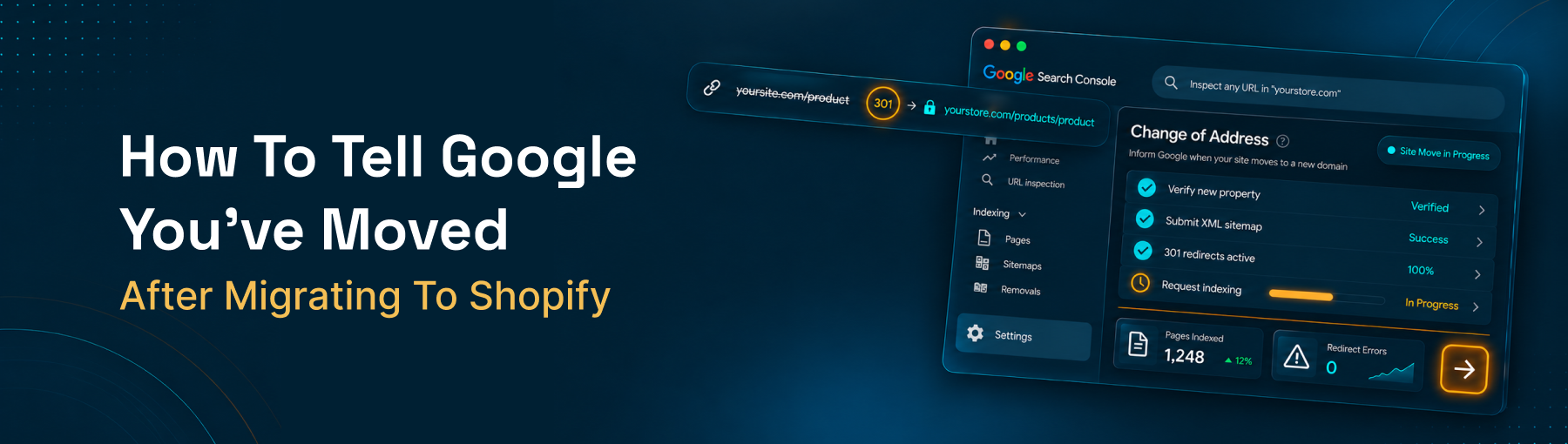
How to Tell Google You've Moved After Migrating to Shopify
Migrated to Shopify? Here's exactly how to tell Google - Search Console setup, sitemap submission, the Change of Address tool, and what to monitor.
Short answer: it depends on whether your domain changed, or just your platform did. If you kept the same domain and only switched the software running behind it, Google doesn't need a formal "we moved" declaration - it needs correct redirects, a fresh sitemap, and time to recrawl. If your domain changed too, there's a specific Google Search Console tool built exactly for that. Here's precisely what to do in each case, and the steps people skip that quietly slow down recovery.
First: Did Your Domain Change, or Just Your Platform?
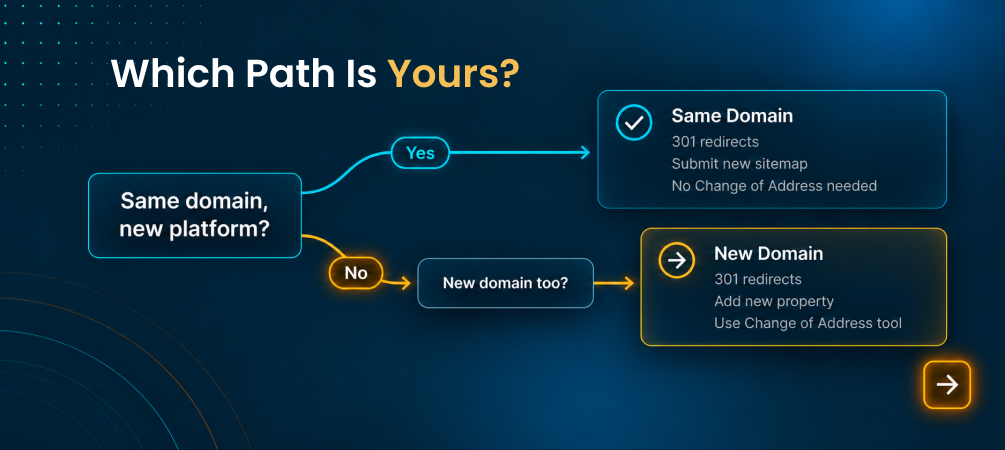
This distinction determines almost everything that follows, and it's the part a lot of migration advice glosses over. If mystore.com stayed mystore.com and you simply moved from Wix or BigCommerce to Shopify underneath it, that's a platform change with no URL-level domain change - Google's Change of Address tool doesn't apply here, and using it incorrectly won't help. If you moved to a different domain entirely (or from a subdomain like mystore.myshopify.com to your own custom domain), that's a domain change, and Google has a dedicated process for it.
👉 See how ShiftItNow handles redirects for your specific migration before you touch Search Console.
If You Kept the Same Domain: What to Actually Do
Re-verify your property in Google Search Console using a method Shopify supports - an HTML meta tag, DNS TXT record, or your connected Google Analytics/Google & YouTube sales channel - since your hosting changed even if your domain didn't. Submit your updated XML sitemap; Shopify generates one automatically at yourdomain.com/sitemap.xml, and resubmitting it prompts Google to recrawl your new URL structure rather than waiting to stumble onto it. Use the URL Inspection tool to manually request indexing on your highest-value pages - homepage, best-selling products, top blog posts - instead of waiting for Google's natural crawl schedule to reach them.
👉 Run a free demo migration with ShiftItNow and get a clean redirect map to work from.
If Your Domain Changed: Use the Change of Address Tool
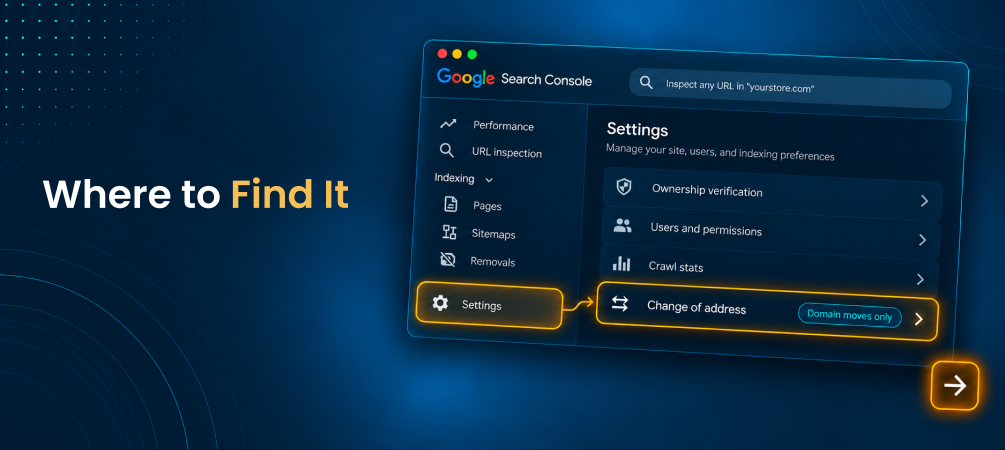
When you've moved to a genuinely new domain or subdomain, Google's Change of Address tool (inside Search Console settings) is the correct step - but it comes with two requirements people frequently miss. First, both the old and new domains need to be verified properties in your Search Console account before the tool becomes available. Second, the tool doesn't replace 301 redirects - it depends on them already being fully in place. Submitting a change of address without working redirects underneath it won't transfer your rankings; the redirects do the actual work, and the tool just confirms the move is intentional and permanent.
👉 Talk to a migration expert if your Shopify migration includes a domain change.
Don't Forget Your Google Merchant Center Feed
If you run Google Shopping ads or free product listings, this is the step that gets missed most often. Your product feed is tied to your old platform's URL structure, and if it isn't reconnected, your Shopping listings can start pointing at broken links even while your actual site works fine. Shopify's built-in Google & YouTube sales channel handles feed generation and syncing automatically once connected, which is worth setting up as part of migration day, not as an afterthought once someone notices ad performance dropping.
👉 Migrate with SEO and redirects handled from day one instead of chasing feed issues after launch.
What to Monitor After You Launch
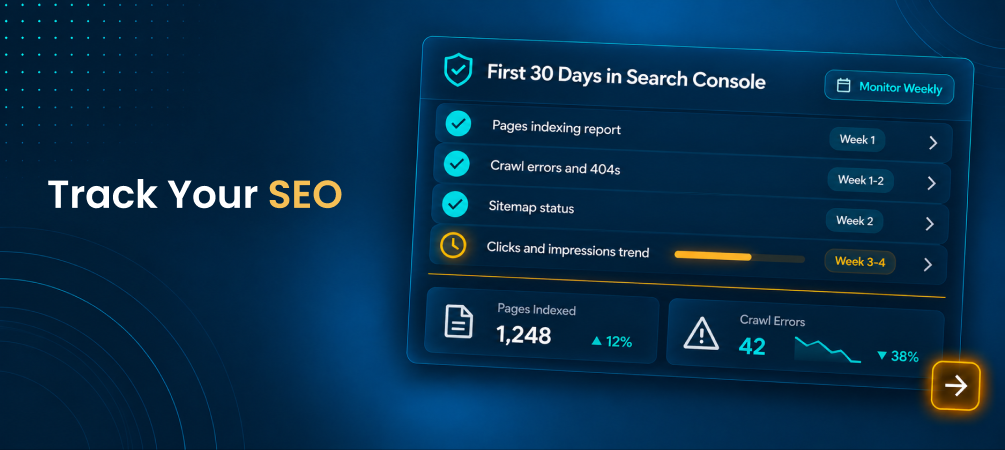
Check Search Console's Coverage report in the first two weeks for a spike in 404 errors - that's your earliest signal a redirect is missing somewhere. Compare the Performance report's impressions and clicks against your pre-migration baseline rather than assuming silence means a problem; some fluctuation while Google recrawls is normal and typically settles within four to eight weeks for a properly redirected migration. Keep an eye on Core Web Vitals too, since site speed can shift when you change platforms, and that affects both rankings and user experience.
Why Most Migration Tools Leave This Part to You
Here's the honest gap: Google Search Console access is tied to you as the site owner, so no migration tool can submit your sitemap or verify your property on your behalf - that part is always manual. But a lot of migration tools don't even hand you a usable starting point, leaving you to build your entire redirect map and figure out your new sitemap structure from scratch, on top of the Search Console work itself. A complete migration tool should generate your 301 redirects and sitemap automatically as part of the migration, so the manual Search Console steps take minutes instead of days.
Quick Post-Migration Google Checklist
- Confirm whether your move involved a domain change or just a platform change
- Re-verify your Search Console property using a Shopify-supported method
- Submit your updated Shopify sitemap (yourdomain.com/sitemap.xml)
- Use the Change of Address tool only if your domain itself changed, and only after redirects are live
- Reconnect your Google Merchant Center feed via Shopify's Google & YouTube channel
- Monitor Coverage and Performance reports weekly for the first month
For the broader picture on ranking risk during a move, see what actually affects your SEO during a Shopify migration, and for what else commonly goes wrong, read our guide on common Shopify migration mistakes.
FAQ: Telling Google About a Shopify Migration
Do I need to use Google's Change of Address tool if I didn't change domains?
No. If your domain stayed the same and only your platform changed, the Change of Address tool doesn't apply - focus on redirects, an updated sitemap, and re-verifying your Search Console property instead.
How long does it take Google to recognize I've moved?
Initial recrawling often begins within days of submitting an updated sitemap, but full stabilization of rankings typically takes four to eight weeks for a properly redirected migration.
Do I need to manually submit every URL to Google?
No. Submitting an updated sitemap and requesting indexing on your highest-priority pages is enough to speed things up - Google will crawl the rest on its normal schedule.
What happens if I forget to update my Google Merchant Center feed?
Your Shopping ads or free listings can end up pointing to broken URLs even if your actual site is working fine, which quietly hurts ad performance until someone catches it.
Can a migration tool submit my sitemap to Google for me?
No - Search Console access is owner-specific, so that step is always manual. A good migration tool can at least generate a clean sitemap and redirect map so the manual submission takes minutes.
Will my Google Business Profile need updating too?
If your website link in Google Business Profile points to an old URL structure, update it to your new Shopify domain or homepage to keep that listing consistent with your actual site.
Telling Google you've moved isn't one universal step - it's a short, specific checklist that depends entirely on whether your domain changed. Get the redirects and sitemap right first, and the Search Console side takes minutes, not days.
👉 Install ShiftItNow from the Shopify App Store and migrate with your redirect map and sitemap ready to submit. No card required.